Posts

Showing posts from 2020

Getting Start With Data Analysis Using SSAS Tabular Modeling In Excel - Part Two
Image
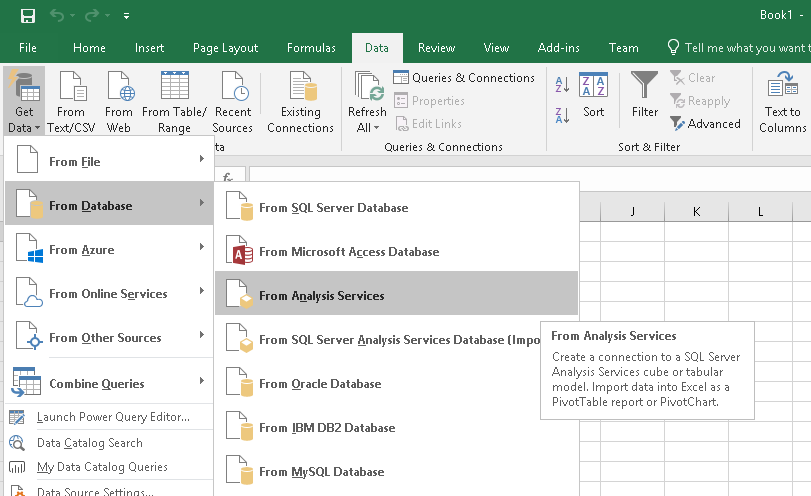
In this article, we are going to see how business users can utilize the tabular model for data analysis and visualization in Excel. This article depends on Part I. So, it would be great if you first go through this: Getting started with data analysis using SSAS Tabular Modeling in Excel - Part I We will see how we can create SSAS tabular model and setup measure, roles, calculated columns, hierarchies in tabular modeling. Now, we created a Tabular Model and deployed it on the analysis server. Let’s open Excel. Go to Data Tab, click on Get Data Option from a ribbon. Go to From Database, Analysis services. It will open Data connection wizard, enter server & credential details. Click on next. Select Tabular Model Database. Click on next. Now, Save Data Connection and Click on finish. Go to Insert Tab, Click on Pivot Table option from the ribbon. Select External Data Source. Click on choose connection. We can see our saved data connec...

Send Email With SharePoint Lookup Columns Data Using Power Automate

Image
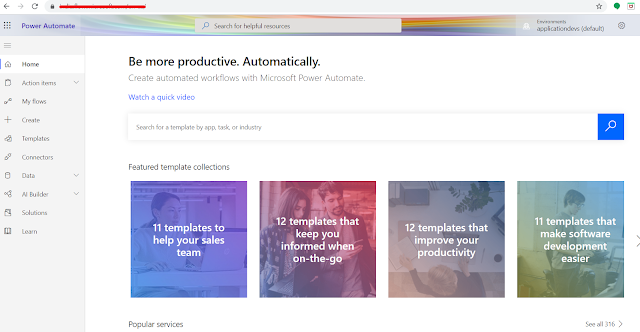
  Introduction   In this article, we are going to send an email with SharePoint Lookup Column data using Power Automate. We will create a flow that’s run weekly that fetches data from a SharePoint list which contains lookup columns. We will use the “Apply each” action to get lookup records.   SharePoint Parent List - "ProductSales"   Columns Type Title Text ExpiryDate DateTime SalePersonName LookUp (SalePerson List)   SharePoinChild List - "SalePerson"   Columns Type Title Text   In the above lists we have SalePersonName column which is actually the Title column from SalePerson List. When we “Parse Json” data in the above type of data we get two title fields in the dynamic column section. And sometimes workflow fails due to a null record in lookup column. Let’s see the data in the list as below,     Log in to Office.com with Office 365 credentials. Go to the “Power Automate” tile and click on it. It will be redirected to the Power Automate Pa...

Send an Email Reminder Notification Based on an Expiration Date using Power Automate

Image
Introduction    In this article, we are going to create an email reminder notification based on an expiration date using Power Automate. We will create a flow that’s run daily that reads & filters data from a SharePoint list that has list items that expire in the next 5 days. Then it will send an expiration notification email to a particular user.   SharePoint List - "ProductSales"     Columns  Type  Title  Text  ExpiryDate  DateTime   Let’s log in to Office.com with office 365 credentials. Go to the “Power Automate” tile and click on it.   It will be redirected to Power Automate Page. Click on Create button from left navigation.   Click on the scheduled flow tile. It will open the popup.       Create Recurrence Flow Enter the flow name and select a specific time when we want to schedule this workflow. Then, click on the create button. It will ...

The Developer’s Journey: Navigating Doubt, Frustration, and Growth

Many software developers aspire to work for leading tech companies and become experts in their field. This journey, however, takes time and perseverance—excellence doesn’t happen overnight. Along the way, it’s common to face self-doubt, frustration, and a flood of uncertain thoughts. Here’s a look at some common mental hurdles developers encounter, along with practical ways to move past them: